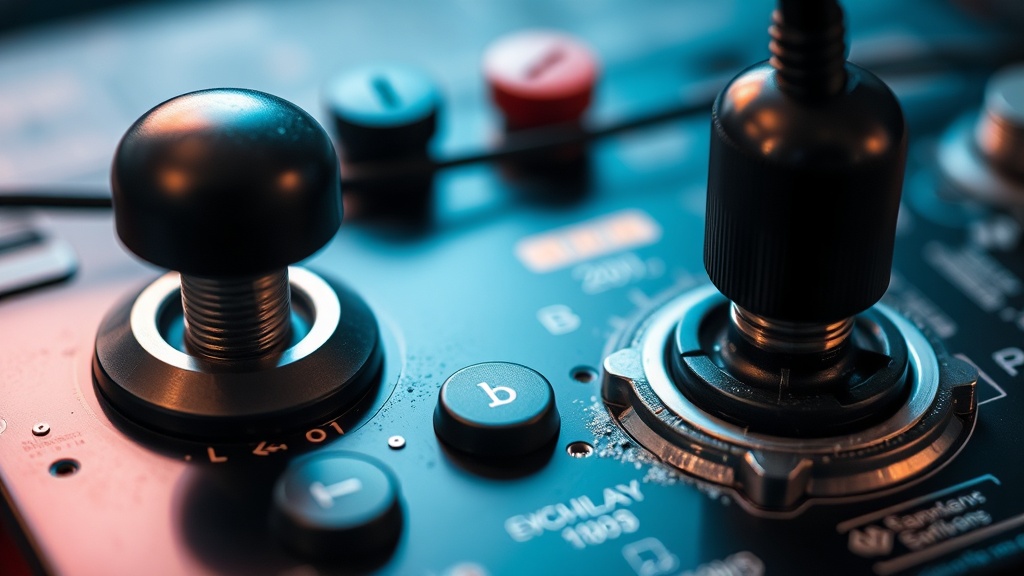
How to Clean and Restore Grime from Joystick Microswitches

A joystick feels heavy, sluggish, and unresponsive. You press left, but the character on the screen hesitates, or perhaps the input doesn't register at all. This is often caused by microscopic debris, oxidation, or way too much contact cleaner buildup inside the microswitch housing. This guide covers the exact steps to disassemble, clean, and restore your arcade microswitches to their original tactile snap.
Most collectors treat a sticky joystick as a sign that the entire assembly is dying. Usually, it's just a dirty switch. If you can fix the switch, you save yourself the cost of a new Sanwa or Seimitsu unit. It's a small win for your wallet and your high scores.
What Causes Joystick Microswitches to Fail?
Microswitches fail primarily due to dust, hair, and the buildup of liquid residue from over-applied cleaning agents. Inside a standard microswitch, a small metal leaf spring makes contact with a terminal to complete a circuit. Over time, even tiny amounts of carbon buildup or physical debris can prevent that connection from happening reliably.
A few common culprits include:
- Dust and Hair: Especially in high-traffic environments or home setups with pets.
- Oxidation: Natural aging of the metal contacts.
- Excessive Contact Cleaner: Using too much spray can actually leave a gummy residue that mimics the very problem you're trying to fix.
- Mechanical Wear: The internal spring losing its tension (this is harder to fix).
If you've noticed your arcade cabinet's buttons or sticks acting strangely, it might be worth checking if you've neglected general maintenance. For example, if you haven't addressed environmental factors, you might be dealing with a larger issue like yellowing or environmental degradation. But for now, let's focus on the electronics.
How Do I Clean a Microswitch Without Breaking It?
To clean a microswitch, you need to use a high-quality, non-conductive electronic contact cleaner and a steady hand. You'll rarely want to open the actual plastic casing of the switch itself—doing so usually breaks the internal tension—but you will be cleaning the contact points and the exterior housing.
The Tools You'll Need:
- Contact Cleaner: Use a dedicated brand like DeoxIT or a similar high-quality electronic cleaner. Never use WD-40 (the standard lubricant); it's too oily and will attract more grime.
- Precision Screwdriver Set: To remove the joystick assembly from the control panel.
- Small Brushes: An old toothbrush or a specialized ESD-safe brush.
- Compressed Air: To blow out loose debris.
First, disconnect the power. I can't stress this enough—working on live electronics is a recipe for a short circuit. If you're working on a vintage cabinet, be extra careful. You don't want to accidentally ground a component or blow a fuse. If you've seen signs of aging in your hardware, you might want to check dying capacitors before you start poking around with liquids.
Step-by-Step Cleaning Process
1. Disassembly
Remove the control panel or the joystick assembly from the cabinet. Unscrew the mounting nut and pull the stick assembly out. You want a clear workspace—a magnetic parts tray is a lifesaver here.
2. The Initial Blowout
Use your compressed air to blow out the area around the microswitch. You'll likely see a cloud of dust fly out. This is the "gross" part of the job, but it's necessary to ensure you aren't just pushing dust deeper into the mechanism.
3. Targeted Cleaning
Apply a small amount of contact cleaner to the switch. You aren't soaking it; you're just wetting the contact area. If the switch has an external lever, spray a tiny bit where the lever meets the switch body. This helps clear out any "gunk" that might be causing physical resistance.
4. The "Click" Test
While the cleaner is still wet, rapidly click the switch 20 to 30 times. This mechanical action helps the chemical break down the oxidation on the internal metal surfaces. It's the most effective way to ensure the cleaner actually reaches the contact point.
5. Drying and Reassembly
Wait at least five minutes for the cleaner to fully evaporate. If you put it back together while it's still wet, you'll just create a mess. Once dry, reattach the assembly and test it with your arcade machine or a USB encoder to confirm the input is crisp again.
| Method | Effectiveness | Risk Level | Best For... |
|---|---|---|---|
| Compressed Air | Low (Surface only) | Very Low | Removing loose dust/hair |
| Contact Cleaner | High (Deep cleaning) | Medium | Oxidized or "sticky" switches |
| Opening the Switch | Extreme (Internal) | High | Expert level/Advanced repair |
Is It Better to Replace or Clean a Microswitch?
It is usually better to replace the microswitch if the internal spring mechanism has physically failed or if the switch is an older, non-standard model. If you've tried cleaning it with a high-quality contact cleaner and the input is still inconsistent, the internal metal leaf has likely lost its spring tension—and no amount of cleaning will fix that.
If you're using standard parts like Sanwa OBSF or Seimitsu switches, replacement is incredibly easy and cheap. A single switch often costs less than five dollars. If you're a competitive player, though, I'd suggest cleaning first. Why? Because you already know the "feel" of your current switch. A new one might feel slightly different, even if it's the same model.
On the flip side, if you're working on a vintage cabinet with original, hard-to-find switches, cleaning is your only real option. In those cases, proceed with extreme caution. You don't want to be the person who ruined a piece of history because you were too aggressive with a spray bottle.
Sometimes, the issue isn't the switch at all. It could be the wiring or the connection to the PCB. If the switch feels physically fine but the signal is dropping, check your crimped connections. A loose wire can mimic the symptoms of a dirty switch every single time.
If you're worried about the long-term health of your arcade machine, remember that maintenance is a marathon, not a sprint. Keeping your controls clean is just one part of a larger preservation strategy. If you've spent a lot of time and money on your setup, you'll want to ensure everything from the artwork to the internal electronics is kept in top shape.
Steps
- 1
Disassemble the Control Panel
- 2
Identify the Problematic Switch
- 3
Apply Isopropyl Alcohol to the Contact Points
- 4
Test for Snap and Responsiveness