A Collector's Manual for Reviving Arcade Monitor Displays

How Can I Safely Work on My Arcade Monitor?
Did you know that despite decades of technological advancement, a significant portion of arcade machines—even those from the early 2000s—still rely on cathode ray tube (CRT) monitors, technology largely abandoned in consumer electronics by the late 2000s? This enduring reliance means that mastering the intricacies of CRT display troubleshooting is invaluable for any serious collector. This guide offers a practical, step-by-step approach to diagnosing and resolving common display issues in vintage arcade machines, providing both novice and experienced enthusiasts with the confidence to keep their treasured games looking their best. Understanding monitor malfunctions isn't just about preserving aesthetic appeal; it's about maintaining the authentic gameplay experience and safeguarding the investment in these mechanical marvels.
Working with arcade monitors, particularly cathode ray tubes (CRTs), isn't like swapping out a modern LCD. These components house dangerously high voltages, even long after being unplugged from the mains. Prioritizing safety isn't optional; it's absolutely necessary when you're troubleshooting or repairing these vintage displays.
First, it’s vital to understand the inherent risks. The flyback transformer and the CRT’s anode cap—that distinctive suction cup-like connector on the side or top of the tube—can store tens of thousands of volts for extended periods. This residual charge is enough to be lethal. Always respect this power: never work on a powered-on monitor, and assume capacitors are charged until you’ve proven otherwise. This isn't a task for the faint of heart, or for someone unprepared.
Essential Safety Tools for Monitor Work
- CRT Discharge Tool: This is a non-negotiable item. A specialized tool designed to safely ground the high voltage stored in the CRT’s anode. While some hobbyists build their own using a screwdriver and alligator clips, buying a purpose-built, commercially available tool with proper insulation is a smarter, safer choice.
- Insulated Gloves: These aren't standard gardening gloves. You need gloves rated for high voltage electrical work—specifically, those designed to protect against thousands of volts.
- Multimeter: Invaluable for checking AC and DC voltages (after discharge, of course), performing continuity tests on fuses and wires, and verifying component integrity.
- Plastic/Non-Conductive Adjustment Tools: If you must make adjustments to potentiometers on the chassis while the monitor is powered on (a task for experienced hands only, and after initial safety checks), always use tools made from non-conductive materials to prevent accidental shorts or shocks.
The Critical Discharge Procedure
Before you even think about touching the monitor chassis, you absolutely must discharge the CRT. This process is crucial:
- Unplug Everything: Power off the entire arcade machine and completely disconnect it from the wall outlet. Don't just flip the power switch; pull the plug.
- Wait: Give the machine at least 15-30 minutes for some of the residual charge to dissipate naturally through internal resistance. Patience here can save your life.
- Locate Anode Cap: Identify the anode cap on the CRT tube. It's usually a rubber suction cup, often red or black, with a wire running underneath it.
- Discharge: With your CRT discharge tool, carefully slide the metal probe under the anode cap, ensuring it makes solid contact with the metal clip beneath. Simultaneously, connect the other end of your discharge tool (the ground clip) to the metal frame of the monitor chassis. You should hear a distinct snap or crackle—this is the discharge. Hold it in place for several seconds to ensure a complete discharge.
- Verify: Repeat the discharge process a few times. For an added layer of safety, you can then short the anode to ground with your multimeter in voltage mode; if it reads zero, it’s safe to proceed with other work.
Beyond discharge, general practices include working in a well-lit, dry area. When working near live circuits (even if discharged, always maintain vigilance), keep one hand in your pocket. This prevents current from passing across your chest and potentially through your heart should you accidentally make contact. Ideally, never work alone when dealing with high voltages.
Why is my Arcade Monitor Showing a Garbled or No Image?
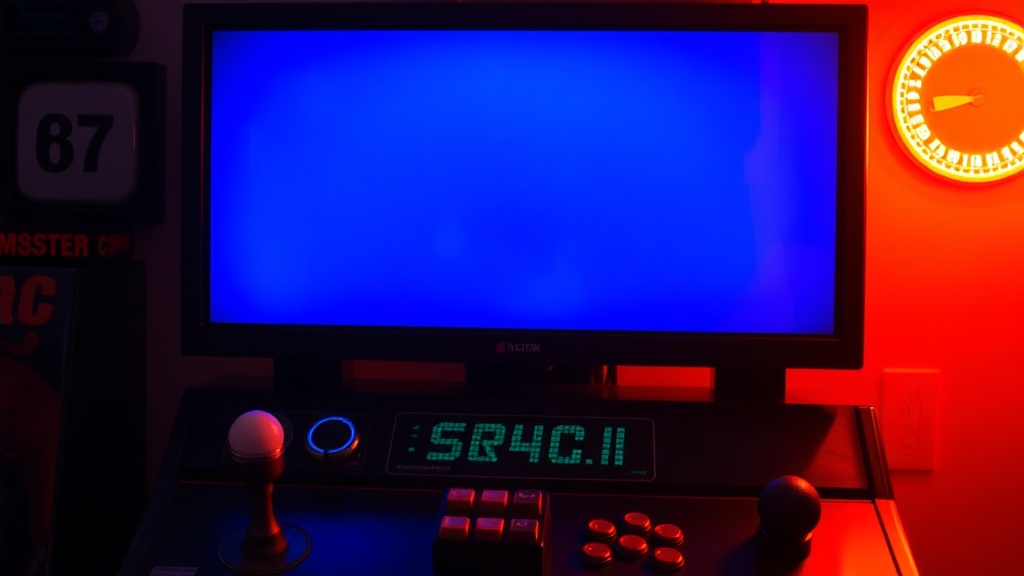
Few things are more disheartening than powering on a cherished arcade machine only to be met with a blank screen or a chaotic, unreadable mess. These issues almost always point to problems within the video signal chain, from power delivery to the game board’s output.
Troubleshooting a Completely Dead Screen (No Image at All)
- Is the Monitor Getting Power? This is the simplest starting point. Check if the monitor’s power LED (if it has one) is illuminated. Use your multimeter to verify the AC input voltage to the monitor chassis. Look for any blown fuses on the chassis itself; these small glass tubes with a thin wire inside will often show a broken filament if blown. A continuity test with a multimeter can definitively confirm a blown fuse.
- Flyback Transformer Failure: The flyback transformer is responsible for generating the extremely high voltage required to power the CRT tube. A failing flyback can manifest as a completely dead screen, a high-pitched whining sound, or even a noticeable burning smell. Replacing a flyback is a complex task that often requires advanced soldering skills and careful component selection, so it’s frequently best left to experienced technicians. However, identifying it as the likely culprit significantly narrows your troubleshooting scope.
- Loose or Damaged Video Cable: The cable that connects the game board (PCB) to the monitor chassis can become loose, suffer from corrosion on its pins, or get physically damaged over decades of use. With the machine powered down, carefully inspect and reseat both ends of the video cable. Look for bent pins, frayed wires, or obvious signs of oxidation.
- Game Board (PCB) Not Outputting Video: Sometimes, the monitor itself is perfectly fine, but the game board isn't generating a video signal. If you have access to a known-good game board, try swapping it in as a diagnostic step. Some repair benches also use dedicated test pattern generators. If your monitor features an input selector (more common on monitors designed for multiple resolutions), ensure it’s set to the correct video input.
Diagnosing Garbled, Rolling, or Sync Issues
- Sync Signal Problems: For a steady, coherent picture, the monitor requires a stable horizontal (H) and vertical (V) sync signal from the game board. If these signals are weak, corrupted, or entirely absent, you'll observe symptoms like a continuously rolling image, a tearing picture, or a violently distorted display. Many older arcade monitors have horizontal hold (H-HOLD) and vertical hold (V-HOLD) adjustment potentiometers on the chassis. Gently try adjusting these—sometimes, their values drift over time, causing instability.
- Incorrect Resolution/Refresh Rate: While less common with original, dedicated arcade PCBs and their matching monitors, if you're using an adapter board (like a JAMMA to VGA converter) or a custom PC setup, ensure the video source’s resolution and refresh rate are fully compatible with your monitor’s specifications. Incompatibility can lead to no image or a very garbled one.
- Component Video Problems: Most arcade monitors use RGB (Red, Green, Blue) video signals. If you're seeing a severely color-shifted image—for example, only reds and blues with no green—it often indicates a problem with one of the individual color lines. This typically means a broken wire in the video cable, or, in more severe cases, a faulty video output stage on the game board itself.
What Causes Common Arcade Monitor Display Distortions?
Even with an image present, it might not look quite right. Geometry issues, strange colors, or a dim display are prevalent challenges for vintage arcade monitors. Addressing these frequently means delving into the chassis adjustments or, more often, component replacement—a rite of passage for many collectors.
Correcting Geometry Distortions (Pincushion, Barrel, Linearity)
Your monitor chassis is equipped with a series of small potentiometers (pots) that control various aspects of the display's geometry. Learning what each one does is invaluable:
- H-SIZE (Horizontal Size): Adjusts the overall width of the image.
- V-SIZE (Vertical Size): Adjusts the overall height of the image.
- Pincushion/Barrel: These controls correct inward (pincushion) or outward (barrel) bowing of the screen’s vertical edges. You might find them labeled "PIN AMP," "PIN CUSH," or similar.
- Linearity: Ensures that objects and lines appear proportional across the entire screen, preventing them from being stretched or compressed in specific areas. Separate horizontal and vertical linearity adjustments might be present.
How to Adjust: With the machine powered on and displaying a stable image (a dedicated test pattern with grids is ideal), use a non-conductive alignment tool to gently turn these pots one at a time. Make small, incremental adjustments and carefully observe the effect. Aggressive or incorrect adjustment can sometimes stress or even damage components. For advanced or persistent geometry issues, a yoke adjustment might be necessary, but this is a particularly delicate procedure that can easily throw off color purity and convergence, so proceed with extreme caution or seek expert assistance.
Addressing Color Purity and Convergence Issues
- Degaussing: Over time, the metal frame of the CRT and its internal components can become magnetized, leading to unsightly splotches of impure color (e.g., a green blob on what should be a perfectly white background). Most arcade monitors have an internal degaussing coil that briefly activates upon power-up, but its effectiveness can wane. An external degaussing coil—a specialized tool—can be slowly passed over the screen in a circular motion to remove these magnetic fields. Viewing a demonstration of proper degaussing techniques is highly recommended for effective results—it’s something of an art.
- Convergence: This refers to the precise alignment of the red, green, and blue electron beams as they hit the screen’s phosphors. If they don't converge perfectly at each pixel, you'll notice distinct color fringes or halos around objects, particularly at the edges of the screen. Convergence is adjusted using magnetic rings located on the neck of the CRT. This is an incredibly precise and sensitive undertaking, often requiring a detailed convergence test pattern and a keen eye. Incorrect adjustment here can significantly worsen the problem. For monitor-specific convergence procedures,